How Do You Override HP Ink Cartridge Errors?
Many people struggle with HP ink cartridge errors, and it can be frustrating when your printer suddenly stops working just when you need it most. You’re not alone—these issues happen more often than you’d think, and there are simple ways to fix them.
To override HP ink cartridge errors, start by powering off and unplugging your printer for at least 60 seconds. Then reinstall the cartridges securely and clean the contacts with a lint-free cloth.
You can also update or disable firmware updates through the settings or HP Smart App to prevent compatibility issues.
If errors persist, resetting the printer or temporarily changing your system date can help bypass restrictions. Keep exploring for more detailed solutions to fix your printer.
Key Takeaways
- Remove and reinstall the cartridges firmly, making sure they click into place properly.
- Clean the cartridge and slot contacts with a lint-free cloth and some distilled water or alcohol.
- Reset the printer by turning it off, unplugging it for a few minutes, then turning it back on. If the error keeps showing up, try doing a factory reset.
- You might also want to disable automatic firmware updates or set the system date earlier temporarily. This can help bypass certain restrictions.
- Consider using compatible or refilled cartridges. Sometimes cleaning contacts or adjusting system settings can override persistent errors.
Understanding Why Your HP Printer Shows Cartridge Errors
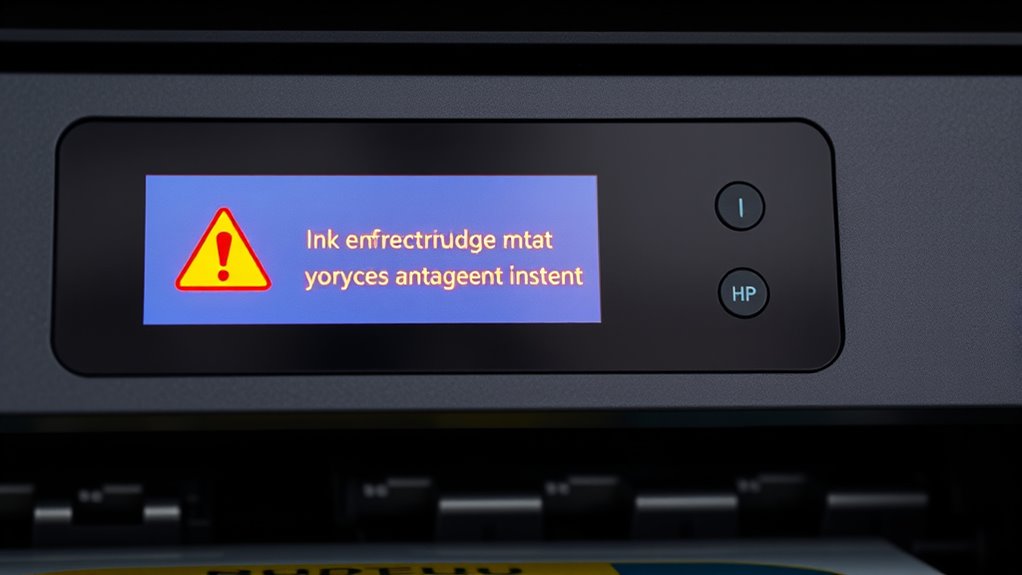
When your HP printer shows a cartridge error, it’s usually because the printer’s firmware detects a problem with the cartridge. Firmware in HP printers uses security chips and region-locking features to verify ink cartridges.
These errors often happen after firmware updates that enforce restrictions on third-party or refilled ink cartridges. Sometimes, physical issues like dirty contacts or cartridges not seated properly can also cause false errors.
If you run into these problems, you might need to reset the printer or change some settings to override the error. Knowing that firmware plays a big role in cartridge verification helps you understand why the system flags incompatible cartridges and how to troubleshoot them.
Power Cycle Your Printer to Clear Incompatibility Errors
To clear ink cartridge errors, turn off your printer and unplug it from the power source. Wait at least 60 seconds before reconnecting everything.
This helps reset the internal systems. Once you power it back on, the printer often reinitializes, which can resolve recognition issues.
Disconnect Power and Cartridges
Disconnecting the printer from power and removing all ink cartridges can effectively reset the system and clear certain error messages. To do this, unplug the printer from the power source.
Then, carefully remove all ink cartridges. Press and hold the Power button for 30 seconds while the printer remains unplugged to discharge residual power. This helps reset internal components and clear error states.
Afterward, reinstall the cartridges securely into their slots. Reconnect the printer to power and turn it on. Check if the error message has disappeared or been overridden.
Power cycling in this way resets the printer’s memory and can temporarily bypass cartridge recognition errors. It gives you a fresh start to troubleshoot further if needed.
Wait and Reconnect
After removing the cartridges and unplugging the printer, waiting before reconnecting can help clear certain errors. To do this, perform a power cycle by turning the printer off, unplugging it, and waiting at least 10 minutes.
This pause allows the internal memory to reset, which can resolve temporary cartridge recognition issues. When you reconnect the power cord and turn the printer back on, check if the error message is still there.
Sometimes, simply restarting the printer after a power cycle resets the system and overrides the error message. If the cartridge error remains, try the power cycle again.
This process often clears compatibility or recognition errors, helping the printer properly identify the cartridges and get back to normal.
Check and Reinstall Ink Cartridges Properly
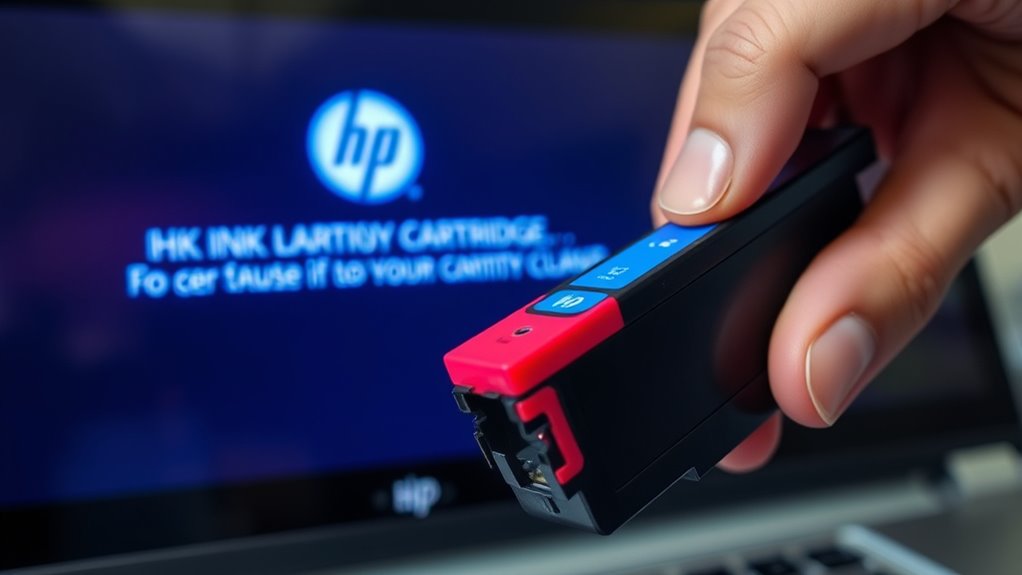
Have you checked whether your ink cartridges are properly installed? To do this, carefully remove all the ink cartridges, handling them gently to avoid damaging the contacts.
Reinstall each cartridge firmly into its designated slot, making sure they click into place. Check the cartridge contacts and the corresponding slot contacts for dust, ink residue, or debris. Clean them with a lint-free cloth if needed.
Ensure the cartridges are compatible with your specific printer model and that any protective tape or plastic seals have been fully removed before reinstalling. Proper reinstallation can often fix recognition issues and clear error messages.
After reinstalling, turn on the printer and see if the error still shows up. Properly installed ink cartridges are key to keeping your printer running smoothly.
Clean Printer Contacts to Improve Cartridge Recognition
Wondering why your printer isn’t recognizing new ink cartridges? Sometimes, dirty printer contacts are the culprit. To fix this, carefully clean the contact points on both the ink cartridges and inside the printer’s slots.
Use a lint-free cloth dampened with distilled water or isopropyl alcohol. Gently wipe the HP printer contacts without touching the nozzles or chip surface. Always power off and unplug the printer beforehand to avoid damage.
Make sure the contacts are completely dry before reinstalling. Regular cleaning of the contact points helps maintain proper cartridge detection and prevents error messages.
| Contact Points | Effect on Cartridge Detection |
|---|---|
| Dirty contacts | Causes recognition errors |
| Cleaned contacts | Ensures proper detection |
| Moisture present | Interferes with recognition |
| Dry contacts | Promotes reliable detection |
| Frequent cleaning | Reduces errors |
Update Your HP Printer Firmware From Official Support Sources
To update your HP printer firmware, start by downloading the latest version from the official HP Support website for your specific model.
Make sure your printer is connected to a stable internet connection, then follow the step-by-step instructions provided to complete the installation.
Don’t turn off or interrupt the printer during the update to prevent issues.
Finally, restart the device afterward to see if the ink cartridge errors are resolved.
Access Official Firmware Downloads
Ensuring your HP printer runs smoothly often means keeping its firmware up to date. The best way to do that is by downloading updates directly from HP’s official support sources.
Visit the official HP support page and go to the “Drivers and Software” section for your specific printer model. From there, download the latest firmware for your printer.
Make sure to follow the instructions carefully—sometimes you’ll need to connect via USB. Keep your printer plugged into a reliable power source and have a stable internet connection during the update.
After the update, verify it by checking the firmware version in your printer settings or through the HP Smart App. Staying current with firmware updates helps prevent errors and keeps your printer performing its best.
Follow Proper Installation Procedures
Before attempting to override any cartridge errors on your HP printer, it’s essential to update the firmware using official support sources. Start by downloading the latest firmware update from the HP support website, making sure it’s compatible with your printer model.
Follow the manufacturer’s instructions carefully during the installation. Usually, this involves connecting the printer via USB and using HP’s support utilities. A proper firmware update can fix recognition issues and reset the printer’s detection system, which might override cartridge errors.
After completing the update, restart your printer and check if the error still appears. This process keeps your printer’s firmware current, helping with smoother cartridge installations and reducing errors. Always verify that the update was successful before moving on with other troubleshooting steps.
Stop Automatic Firmware Updates to Keep Your Cartridges Working
Disabling automatic firmware updates on your HP printer is a key step in preventing restrictions that block third-party or remanufactured cartridges. You can do this through the printer settings or the HP Smart App, making sure it doesn’t download new restricted versions.
You might also disconnect your printer from the internet or block update servers with firewall settings. This helps you stay in control of firmware changes and avoid unwanted restrictions.
Setting your printer to offline mode before turning on automatic updates can prevent the installation of firmware that enforces restrictions.
Regularly checking for manual updates from trusted sources allows you to decide when your device receives updates. This way, you can avoid firmware restrictions that could disable or limit third-party cartridges.
Reset Your HP Printer to Factory Settings
Resetting your HP printer to factory settings can often fix stubborn ink cartridge errors by restoring default configurations and clearing glitches. To do a printer reset, access the reset options through the control panel menu or the HP Smart App, depending on your model.
Before you start, back up any custom settings to avoid losing data. Navigate to the Settings or Tools menu, then select the Reset or Restore Defaults option.
Performing a factory reset will restore defaults and clear persistent error messages. After resetting, reinstall the cartridges and run a test print to see if the error is gone.
Reset your HP printer carefully, as this step can help clear issues and improve overall performance.
Temporarily Change System Date to Bypass DRM Restrictions
Changing your system date temporarily can help you bypass DRM restrictions imposed by HP firmware on ink cartridges. HP printers often check the system date to enforce licensing restrictions on third-party ink cartridges.
To do this, you need to change the system date on your computer to an earlier time, like January 1st, before the firmware restrictions were applied. After adjusting the system date, restart both your computer and HP printer.
This helps the printer recognize the cartridge without triggering ink cartridge errors caused by DRM checks. Remember to reset your system date to the current time after printing to prevent issues with other applications.
This method offers a quick way to bypass DRM and continue using your ink cartridge on your HP printer.
Use Compatible or Refilled Cartridges Safely
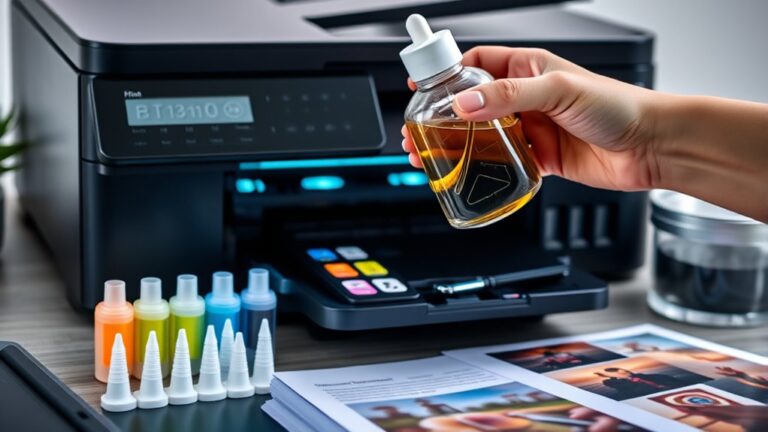
Using compatible or refilled cartridges can be a cost-effective way to avoid HP ink cartridge errors, as long as they are properly prepared and recognized by your printer.
To do this, you should reset the cartridge if needed and make sure it’s installed correctly, with the contacts thoroughly cleaned using a lint-free cloth and distilled water.
Proper cartridge recognition depends on installing compatible cartridges in the right orientation and removing any protective tapes or stickers.
Be cautious with firmware updates; disabling automatic updates or downgrading firmware can help maintain compatibility with third-party ink or refilled cartridges, but it may void your warranty.
Regularly updating your printer’s firmware from official sources or using versions that support third-party cartridges can also reduce errors and improve overall compatibility.
Frequently Asked Questions
How to Get Around HP Cartridge Error?
To get around an HP cartridge error, start by cleaning the contact points on both the cartridge and printer with a lint-free cloth.
You can also try disabling cartridge protection in your printer settings or HP Smart App temporarily.
If that doesn’t work, reset your printer to clear errors.
Using older or compatible cartridges and disconnecting from the internet during firmware updates might also help bypass restrictions.
How to Remove Cartridge Error on HP Printer?
To remove the cartridge error, start by checking if the cartridges are securely seated. If that doesn’t work, gently clean the contacts with a lint-free cloth and isopropyl alcohol, then reinsert.
Power off the printer, unplug it for 10 minutes, and restart. Access your printer settings via the HP Smart App or web interface to disable any cartridge protection.
Sometimes, updating or rolling back the firmware clears stubborn errors. Give that a try if you’re still having issues.
How Do You Override an Ink Cartridge Error?
To override an ink cartridge error, start by accessing your printer’s settings through the HP Smart App or the control panel.
Disable any cartridge protection features, then remove and clean the contacts on your cartridges before reseating them securely.
You can also try temporarily changing your computer’s system date to an earlier time or disconnecting from the internet to bypass restrictions.
Reverting the firmware or using compatible third-party cartridges might help too, but be cautious with these options.
How to Force an HP Printer to Accept a Refilled Cartridge?
You can bend the rules a bit to get your HP printer to accept a refilled cartridge. First, disable HP Cartridge Protection in your printer settings or the HP Smart App.
Then, change your system date to an earlier time and disconnect the printer from the internet to stop firmware updates.
Cleaning contacts and reseating the cartridge can also help. Sometimes, using compatible cartridges and performing a factory reset do the trick.
Conclusion
By following these steps, you can effectively override HP ink cartridge errors and keep your printer running smoothly. Did you know that about 70% of printer issues are solved through simple troubleshooting? So, don’t get frustrated—try cleaning contacts, updating firmware, or reseating cartridges first.
With a little patience, you can save time and money by avoiding unnecessary replacements. This way, you ensure your printer stays in top shape, even when faced with ink cartridge errors. Mastering how to override HP ink cartridge errors can make all the difference.