8 Simple Steps to Check Ink Levels on Your Canon Printer
Many people struggle with keeping their Canon printer ink levels in check. It’s a common frustration to run out of ink at the worst possible moment, disrupting your workflow. Don’t worry—you’re not alone, and checking ink levels is easier than you think.
To check ink levels on your Canon printer, start by opening your printer’s utility software via your computer. On Windows, go through Devices and Printers, or on Mac, open System Preferences.
Use Canon IJ Status Monitor or similar tools to view ink gauges.
For added accuracy, you can also visually inspect the cartridges or consult the printer’s control panel. Regular checks help prevent surprises and keep everything running smoothly.
If you keep exploring, you’ll find detailed tips to maintain your printer’s performance and avoid running out of ink unexpectedly.
Key Takeaways
- Open “Printers & Scanners” in “System Preferences” on Mac or go to “Devices and Printers” on Windows.
- Find your Canon printer in the list of devices and select it.
- Look for options like “Supply Levels” or “Printer Status” in the menu.
- These options usually show visual indicators or gauges that tell you how much ink is left in each cartridge.
- If the ink levels seem low or you’re unsure, try doing a test print or a calibration.
Why Checking Ink Levels Is Important for Your Canon Printer
Have you ever had a print job suddenly stop? It’s frustrating and can hold up your work or important projects. That’s why it’s so important to check your ink levels regularly.
Monitoring your ink levels helps you avoid unexpected runouts and incomplete prints. Knowing when to replace cartridges keeps your prints consistent and high quality.
It also saves you money and hassle by preventing emergency purchases. Plus, it reduces waste and helps your printer last longer.
Keeping track of ink levels ensures smooth operation, especially during critical printing tasks. It’s a simple step that keeps your Canon printer working efficiently.
How to Check Ink Levels on Canon Printers Using Windows
To check your ink levels on a Canon printer using Windows, start by opening the Control Panel on your computer and navigating to Devices and Printers.
Right-click your Canon printer and select Printing Preferences. Then, click on the Maintenance tab within the Printing Preferences window.
Choose View Printer Status to see the current ink level information displayed on your screen. Make sure your printer is powered on and properly connected to your PC for accurate readings.
| Step | Action | Result |
|---|---|---|
| 1 | Open Control Panel & go to Devices and Printers | Access printer options |
| 2 | Right-click your printer & select Printing Preferences | Open preferences window |
| 3 | Click the Maintenance tab | Find View Printer Status |
| 4 | Select View Printer Status | See ink levels |
| 5 | Check the ink levels displayed | Monitor ink before printing |
How to Check Ink Levels on Canon Printers Using a Mac
To check the ink levels on your Canon printer using a Mac, start by opening “System Preferences” from the Apple menu. Then select “Printers & Scanners.”
Find your printer in the list, click on “Options & Supplies,” and go to the “Supply Levels” tab. Make sure your printer is powered on and connected for accurate readings.
Accessing Printer Settings
Accessing your Canon printer’s ink levels on a Mac is pretty easy once you know where to look. Start by opening the Apple menu and choosing “System Preferences.” Then click on “Printers & Scanners” to see your connected devices.
Find your specific printer model in the list and select it. Next, click on “Options & Supplies” to get detailed settings. You’ll see a list of your printers—click on your Canon model.
Explore “Options & Supplies” to access detailed info about your printer’s status. This is where you can check supply levels and manage options & supplies. It’s a quick way to keep your printer ready to go without any hassle.
Viewing Supply Levels
Once you’ve opened the “Options & Supplies” menu for your Canon printer on your Mac, checking the ink levels is easy.
You can see the status of your ink supplies by going to the “Supply Levels” tab. It shows a visual indicator of how much ink is left in each cartridge.
This way, you can quickly tell if any cartridges are running low and need to be replaced or refilled. The process is simple: select your printer in “Printers & Scanners,” click on “Options & Supplies,” then go to the “Supply Levels” tab.
Following these steps helps you stay on top of your ink status and avoid surprises during important printing jobs.
How to Use Canon Software Utilities to Monitor Ink Levels
When you want to check your ink levels using Canon software, start by opening the relevant utility installed on your computer, like Canon IJ Status Monitor. Once it’s open, you’ll see a clear display of your printer’s status.
Open Canon IJ Status Monitor to easily view your ink levels and printer status.
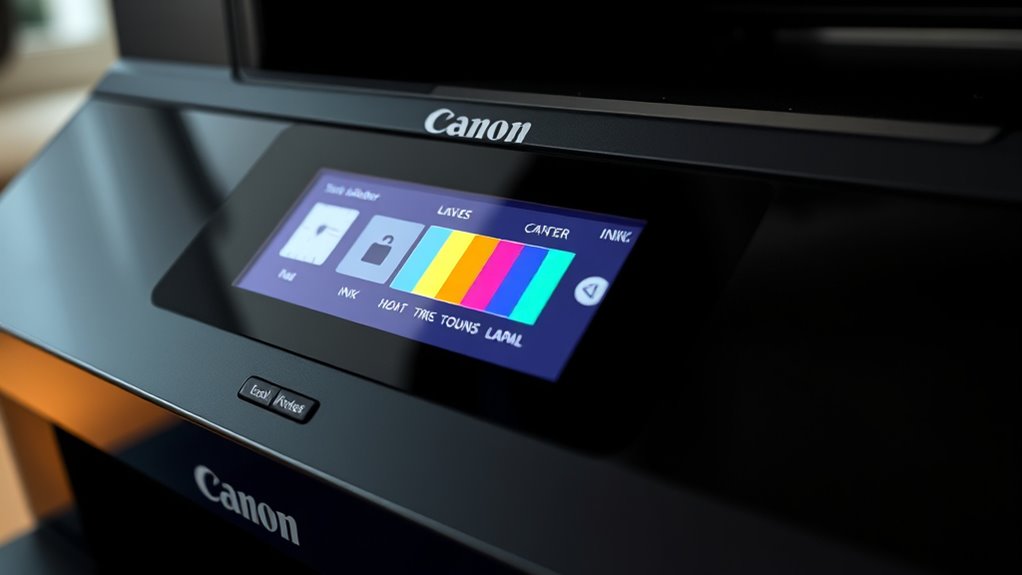
Visual gauges or numerical indicators show the current ink levels for each cartridge. If prompted, you can select your specific printer model.
Navigate to the Ink or Maintenance tab to find more detailed info. Make sure your printer is connected via USB or network, as the software pulls data directly from the device.
Using the “View Printer Status” option, you can easily keep an eye on your Canon ink levels so you know when it’s time to replace cartridges before they run out.
Common Problems With Ink Level Readings and How to Fix Them
Incorrect ink level readings are a common issue that can disrupt your printing process. Sometimes, the Status Monitor may show inaccurate ink levels because the printer’s software is outdated or not installed correctly.
If your cartridges aren’t properly seated or are empty, the ink levels may appear full or low when they’re not. Communication issues between your printer and computer can also delay or prevent low ink alerts.
Using third-party or incompatible ink cartridges can lead to false readings or failure to detect ink status altogether.
To fix these problems, restart your printer and update its firmware. Keeping your software current helps guarantee accurate ink level readings.
Regularly check cartridge placement and consider using genuine ink cartridges for more reliable status updates.
Physically Inspecting Your Ink Cartridges for Low Ink or Empty Indicators
To accurately determine if your ink cartridges are low or empty, start by opening the printer’s ink cover or access panel to reach the cartridges inside. Carefully remove each ink cartridge to inspect the ink level indicator window for low or empty marks.
Look closely for signs of ink depletion, like dried ink around the nozzles or chambers that seem clear or empty. Pay attention to blinking or flashing cartridge lights, which often mean the cartridge is empty or nearly empty.
When inspecting, imagine the cartridges as small tanks with visible indicators showing ink levels. Remember to carefully lift the ink cover and gently remove each cartridge.
Examine the indicator window for low ink marks and check for any signs of ink depletion or empty chambers. Once done, reinstall the cartridges securely to ensure proper contact.
Tips for Ensuring Accurate Ink Level Readings
To get the most accurate ink level readings, make sure your printer’s firmware is up to date and that you’re using official ink cartridges.
Regularly calibrate your printer to keep measurements precise, and always check ink levels through the printer’s software instead of just opening the cartridges.
These steps help prevent misreads and make sure you get reliable ink status updates.
Keep Printer Firmware Updated
Keeping your Canon printer’s firmware up to date is essential for accurate ink level readings. Firmware updates improve compatibility with the latest ink level reporting features and make the ink status displays more precise.
To ensure your printer always reports ink levels correctly, regularly check for updates on Canon’s official support website. Follow the instructions specific to your model to complete the process.
You can also enable automatic firmware updates if your printer supports this feature. This way, your printer stays current without you having to manually check for updates.
Think of the process as connecting your printer to the internet easily, browsing through a simple update menu, and watching the firmware version refresh smoothly. You’ll see ink levels become more accurate and trustworthy.
Staying up-to-date with firmware minimizes discrepancies and keeps your ink level reporting reliable and precise.
Use Official Ink Cartridges
Using genuine Canon ink cartridges is essential for accurate ink level readings and peak printer performance. Official ink cartridges ensure proper communication with your printer, preventing incorrect ink levels from showing.
When installing new cartridges, make sure they’re firmly inserted into the correct slots so the printer can detect ink levels accurately. Avoid third-party or compatible cartridges, as they might not communicate properly, leading to misleading ink level reports.
Refrain from refilling cartridges yourself, since improper refilling can cause sensor errors and inaccurate readings. To keep things accurate, regularly update your printer’s firmware and driver software. This helps improve compatibility and ink level reporting.
Using official ink cartridges guarantees you get reliable ink level information and consistent printing quality.
Regularly Calibrate Printer
Regular calibration is key to making sure your Canon printer’s ink level readings are spot-on. It helps align the printer’s sensors with the actual cartridge status, so you avoid false low ink alerts and print quality issues.
Many Canon printers have a dedicated calibration or printhead alignment option you can find in the Maintenance or Settings menu. When you run calibration, think about printing a test page to see the real print quality.
It’s also a good idea to check the alignment to keep images sharp and clear. If you replace cartridges, recalibrate afterward to keep everything accurate. Updating firmware and drivers can also help improve calibration precision.
Always follow the manufacturer’s instructions for calibration steps. Regularly calibrating your printer keeps your ink readings reliable, so your prints stay consistent and your printer lasts longer.
What to Do When Ink Is Running Low or Cartridges Are Empty
When your Canon printer’s ink runs low or cartridges are empty, it’s important to act quickly to prevent print issues. Start by checking the ink levels regularly using your printer’s utility on your computer. This helps you stay ahead of low ink problems.
When you see the ink is running low, open the ink compartment carefully. Follow proper procedures to avoid damaging the cartridges or the printer. If the cartridges are completely empty, replace them with compatible Canon ink cartridges right away to keep print quality high.
After installing new cartridges, always do a test print. This ensures they are installed correctly and everything is working smoothly. Staying proactive will help keep your printer running well and avoid unexpected interruptions.
Frequently Asked Questions
How Can I Tell How Much Ink I Have Left in My Canon Printer?
You can easily check your Canon printer’s ink levels by using the printer’s control panel or software.
On Windows, go to Devices and Printers, right-click your printer, and select Printing Preferences, then Maintenance to view ink levels.
On Mac, open System Preferences, select Printers & Scanners, choose your printer, and click Options & Supplies.
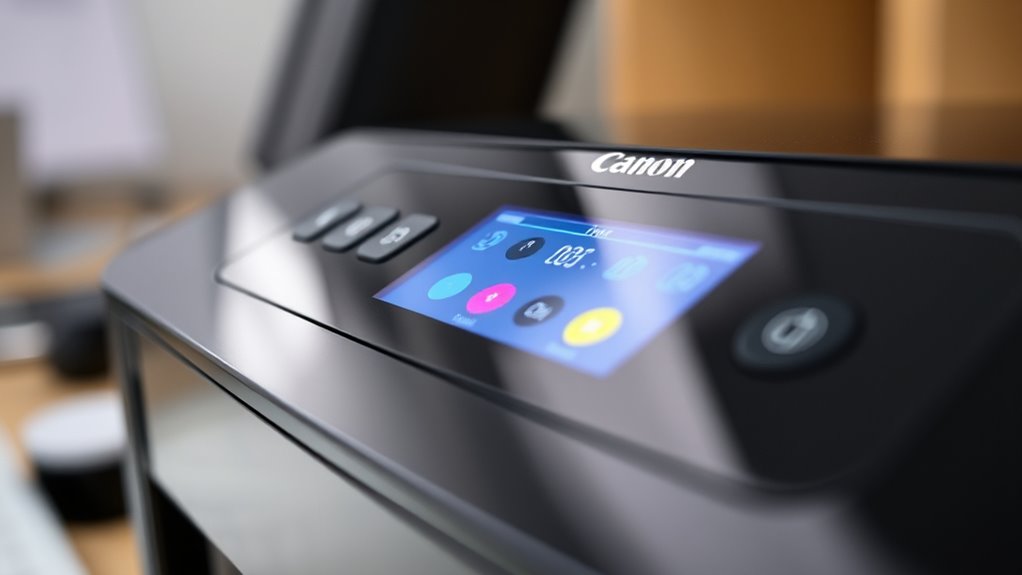
Many models also display ink levels directly on the LCD screen for quick checks.
How Do I Know if My Canon Ink Cartridge Is Low?
When you suspect your Canon ink cartridge is running low, don’t just sit on it. Check the printer’s LCD screen or software for warning messages or icons indicating low ink.
You can also open the cartridge access door and visually inspect the cartridges. If the ink looks low or the printer blinks a warning, it’s time to replace it.
Staying alert like this helps ensure your prints stay crisp and your printer runs smoothly.
How Do I Manually Check Ink Levels on My Printer?
To manually check ink levels on your Canon printer, start by opening the ink access door or cover. Carefully remove the cartridges and hold them up to see the ink level through the transparent window or label.
Look for low or empty indicators on the cartridges or in the slots. If your model has a display, navigate to the ink status menu to get a visual reading.
Always handle cartridges gently to avoid any damage. This simple check helps you stay on top of your ink needs without relying solely on software.
How to Check Ink Levels on Canon Quick Menu?
To check ink levels on the Canon Quick Menu, open the utility on your computer.
Select the “Maintenance” or “Print Head” option, then click on “View Printer Status” or “Check Ink Levels.”
Make sure your printer is connected and turned on for accurate info.
The ink levels will appear graphically or as percentages within the interface, giving you a clear view of your ink status at a glance.
Conclusion
So, now you’re a master of ink levels—your Canon printer’s secret decoder ring. Just remember, ignoring those low ink warnings is like ignoring a leaky faucet; eventually, you’ll be drowning in blank pages.
Keep an eye on your cartridges, stay ahead of the ink apocalypse, and your printing game will stay strong. After all, who needs a steady supply of ink when you can enjoy the thrill of unexpected paper jams?
Happy printing!