How to Send Invisible Ink Text Messages
Many people want to add a fun and mysterious touch to their messages but feel overwhelmed by complicated tricks or unclear instructions. You’re not alone—sending invisible ink messages on your iPhone is easier than you might think, and it’s a great way to surprise friends or keep secrets.
To send invisible ink messages on your iPhone, open the Messages app, compose your message or select a photo/video, then hold the Send button until the effects menu appears. Choose “Invisible Ink,” preview it, and tap Send.
The message will stay blurred until the recipient taps or swipes over it. If you want to master all the tips and tricks, keep exploring how to make your messages more fun and interactive.
Key Takeaways
- Type your message in the Messages app, then hold the Send button to open the effects menu.
- Choose “Invisible Ink” from the options before you send it.
- Tap the Send button again, and your message will go through as blurred or hidden.
- Make sure both you and the person you’re texting have iOS 10 or newer and iMessage turned on.
- When the recipient gets the message, they can reveal it by tapping or swiping over the blurred area.
What Is Invisible Ink Messaging and How Does It Work on iPhone?
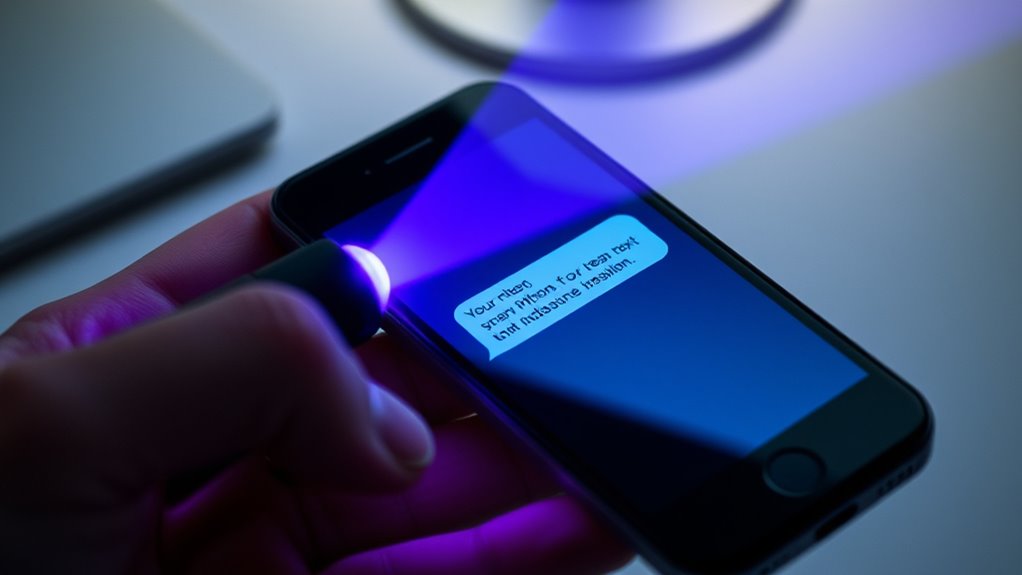
Invisible Ink messaging is a fun feature in iMessage that hides your message content with a blurred effect until the recipient taps to reveal it. This adds a layer of privacy and a touch of surprise to your chats.
To use it, you select the “Invisible Ink” option from the effects menu before sending a message or photo. Both sender and recipient need iMessage enabled and must be running iOS 10 or later.
When the message is received, it appears blurred, making it stand out and inviting curiosity. The recipient can easily uncover the message by tapping or swiping over it.
Unlike secret messaging apps, Invisible Ink offers a playful way to hide messages temporarily. It makes your conversations more engaging while keeping things simple.
How Do You Enable Invisible Ink in Messages?
To enable invisible ink in your messages, start by typing your message or selecting a photo in the Messages app. Next, tap and hold the send button (the upward arrow) next to the message input field.
When the effects menu appears, choose “Invisible Ink” by scrolling through the options. Once you’ve selected it, tap the send button again to send your message with the invisible ink effect.
The recipient will see a blurred version of your message or photo, which they can swipe over to reveal the hidden content. Keep in mind that the effects menu offers several options, but invisible ink is unique for its secrecy.
Getting Your iPhone Ready to Send Invisible Ink Messages
Before you start sending invisible ink messages, make sure your iPhone has the right settings and updates.
First, check that your device is running iOS 10 or later. That’s necessary to access the Invisible Ink feature.
Ensure your device runs iOS 10 or later to access the Invisible Ink feature seamlessly.
Open Settings and verify that iMessage is turned on under Messages. Then, go to Settings > Accessibility and ensure “Reduce Motion” is turned off, as it can interfere with visual effects like invisible ink.
Next, update your iPhone to the latest iOS version through Settings > General > Software Update. This helps ensure all messaging features work smoothly.
How to Send Invisible Ink Texts in Messages Step-by-Step
To send an invisible ink message, start by composing your text in the Messages app.
Next, access the effects menu by holding down the Send button and selecting “Invisible Ink” to preview your message.
Finally, tap to send, and know that the recipient will reveal the blurred message by tapping or swiping over it.
Compose Your Message
Start by opening the Messages app on your device and either start a new conversation or select an existing one.
Next, compose your message by entering your desired text into the message field. Make sure to keep your message clear and concise, as this will help when applying the invisible ink effect later.
Once you’ve written your message, you’re ready to send it with the invisible ink effect. Tap and hold the blue Send button until the effects menu appears.
From the list of message effects, select “Invisible Ink.” Finally, tap the Send button again to send your message with the invisible ink effect applied.
Now your message is ready to be received secretly, adding a fun hidden layer to your communication.
Access Effects Menu
Accessing the effects menu is simple once you have your message typed.
To send a message with invisible ink, you first need to open the effects menu. Tap and hold the Send button (upward arrow) to reveal it.
From there, swipe left to find the “Invisible Ink” option. This effect makes your message appear blurred until someone taps on it.
Before sending, you can preview how your message will look with the invisible ink effect. Once you’re happy with it, tap “Invisible Ink” to select it, then tap Send.
This quick process lets you add a fun, secret touch to your messages using the effects menu.
Send and Reveal
Once you’ve typed your message and chosen the invisible ink effect, tap the Send button. It will send a blurred version of your message that’s hidden from immediate view.
To send, just tap the Send icon after selecting “Invisible Ink” from the effects menu. The recipient will see a blurred message or image, keeping it private until they decide to reveal it.
To reveal the content, they just need to tap and swipe over the blurred area. If you’re sending an image, follow the same steps: tap and hold the Send button, select “Invisible Ink,” then tap Send.
When the recipient taps and swipes, they’ll reveal the hidden message or image. This makes the invisible ink effect both fun and secure for private conversations.
How to Send Invisible Ink Photos and Videos on Your iPhone
To send an invisible ink photo or video on your iPhone, open the Messages app and select or type the media you want to send. Tap and hold the Send button, then choose “Invisible Ink” from the effects menu before tapping Send again.
This will hide the photos or videos with a blurred effect, keeping them hidden until the recipient taps and swipes over the message. Make sure both you and the recipient are using iOS devices with iMessage enabled and updated to iOS 10 or later for the effects to work.
You can also add more fun to your media by applying effects or markup before sending. Just tap the Markup icon after selecting your photos or videos. This adds an extra layer of privacy and fun to your messages.
How Do Recipients Reveal Invisible Ink Messages and Images?
When you receive an invisible ink message or image, revealing its hidden content is easy—just tap or swipe over the blurred area within the Messages app. Tapping on the message or image makes the invisible ink fade, revealing the hidden content instantly.
For images sent with invisible ink, you need to tap and hold, then swipe over the blurred area to fully reveal the message. If the content doesn’t appear right away, you can tap or swipe again to temporarily uncover or hide it.
Remember, this feature only works on compatible iOS devices. Android or older versions won’t display the invisible ink effect.
What Are Common Issues With Invisible Ink and How Can You Fix Them?
Invisible Ink messages can sometimes not display correctly, which can be frustrating. Common issues often stem from compatibility and device settings.
For example, if the recipient’s device isn’t updated to iOS 10 or later, the message may not appear as intended. Also, if Effects aren’t enabled in Settings or both sender and recipient aren’t using iMessage, the effects may not work.
Compatibility problems can also happen if Reduce Motion is enabled in Accessibility, which limits visual effects. To fix these issues, try updating your device to the latest iOS version.
Make sure Effects are enabled in Settings and verify both sides are using iMessage. Restarting your device can also resolve temporary glitches.
Staying aware of these factors helps ensure your Invisible Ink messages display properly.
Can You Use Invisible Ink for Secret or Discreet Messages?
Invisible Ink is great for fun surprises but isn’t reliable for secret or confidential messages. Anyone who receives the message can easily reveal its content, so it’s not suited for sensitive information.
For privacy, you should use apps specifically designed with end-to-end encryption.
Effectiveness for Confidentiality
While invisible ink messages can seem like a clever way to share secrets, they aren’t truly private or secure. The effect only temporarily hides the message, making it easy for anyone aware of how it works to reveal the content. This limits its effectiveness for confidentiality and security, especially when sharing sensitive information.
Relying solely on invisible ink compromises your privacy because anyone can uncover the message with minimal effort. For genuine security, encrypted messaging apps with end-to-end encryption are a much better choice. Remember, invisible ink is mainly designed for fun and playful interactions, not for safeguarding confidential data.
- Easily revealed by anyone aware of the effect
- Not suitable for sensitive or private info
- Offers only temporary concealment
- Lacks strong confidentiality or security
Hidden Messages Limitations
Although invisible ink messages can make your conversations more fun, they have some big limitations when it comes to secret or discreet communication. One of the main issues is security—these messages aren’t encrypted or hidden from view, so anyone can reveal the content just by tapping on the message.
That makes them not suitable for sharing sensitive info. Compatibility is another factor; both sender and recipient need compatible iOS devices with iMessage enabled for the effect to work properly. Since it’s meant for surprise rather than privacy, it doesn’t offer real security.
Once you send an invisible ink message, it can be easily uncovered. So don’t rely on it for confidential or private messages. Its main purpose is for entertainment, not secure communication.
Best Use Cases
Invisible ink messages are great for fun, lighthearted situations where teasing or surprises are the goal, not security. They’re perfect for adding playful messages that spark curiosity or bring delight.
Keep in mind, these messages are only temporarily hidden and aren’t suitable for sensitive info. Since they’re only visible on iOS devices, they work well for discreet chats between Apple users.
Use invisible ink to hide spoilers, jokes, or private notes you want to reveal at just the right moment. But don’t rely on it for confidential or secure messages, as tapping easily reveals the content.
For casual, playful exchanges, invisible ink is a creative way to boost fun and surprise in your conversations. It’s ideal for sharing jokes, riddles, hiding spoilers, or sending playful notes and surprises.
Creative Tips for Making Fun and Surprising Invisible Ink Messages
To make your invisible ink messages more fun and surprising, get creative by adding playful emojis or images that reveal a hidden message when the recipient uncovers it. Use the reveal feature strategically by sending mysterious or teasing messages that encourage tapping and interaction.
Incorporate playful emojis to hint at the secret or to make the message more engaging. You can also hide important or humorous content behind invisible ink, turning simple texts into playful secrets or jokes.
Pair your messages with full-screen effects or bubble animations to boost the surprise factor. Experiment with timing, like sending these messages during special occasions or celebrations, to maximize excitement.
These creative touches make your invisible ink messages more memorable, fun, and full of delightful surprises.
Advanced Tricks for Customizing and Mastering Invisible Ink Effects
Once you’ve nailed the basic invisible ink tricks, it’s time to take your messaging to the next level with some advanced customization. You can layer effects by mixing invisible ink with other message features like bubbles or full-screen reveals to add a fun surprise element.
Enhance your messages by layering invisible ink with bubbles or full-screen reveals for exciting surprises.
You can also control how the hidden message appears by telling the recipient to tap and hold. This makes the content reveal gradually, creating a more interactive experience.
Invisible ink is perfect for sending sensitive or private info discreetly within your chats. Pair it with photos or Memoji stickers to make your messages more visually interesting and surprising.
Always preview your message effects before sending to make sure all the layered effects and reveal timing work smoothly. These tips will help you master invisible ink customization for more dynamic and personalized messages.
How to Cancel or Edit Your Invisible Ink Messages Before Sending
Before you hit send, make sure to double-check your invisible ink message so it looks just right. To cancel your message before sending, tap the ‘X’ icon next to the Send button after choosing the effect.
If you want to edit your message or pick a different effect, tap the message bubble after previewing it. This way, you can make adjustments or switch effects easily.
Always review the preview to ensure your message appears as you want. If you’ve already sent the message, you can’t edit or cancel it. However, you can delete the conversation or message.
To change the effect before sending, press and hold the Send icon, pick a different effect, and then tap Send again.
Limitations and Privacy Considerations When Using Invisible Ink on iPhone
While Invisible Ink adds a fun and mysterious touch to your messages, it has some important limitations and privacy considerations. The effect only works with iMessage on iOS devices, so messages sent to Android or older devices won’t show the effect.
Since the content is revealed with a swipe, it doesn’t really provide privacy or secrecy — anyone can see the message once it’s revealed. Both sender and recipient need iOS 10 or later for it to work properly.
Keep in mind that Invisible Ink doesn’t encrypt or secure your messages beyond hiding the content temporarily. It’s not suitable for sending sensitive or confidential information.
- Messages can be easily revealed by swiping or tapping.
- It’s not effective for privacy or confidentiality.
- Limited to iMessage on iOS devices.
- Not a secure messaging method.
Frequently Asked Questions
Can You Send a Text With Invisible Ink?
Yes, you can send a text with invisible ink in iMessage. To do this, type your message, then press and hold the Send button.
From the effects options, select “Invisible Ink.” Once sent, the recipient will see a blurred message that they can reveal by swiping over it.
Can You Still Do Invisible Text on an iPhone?
Yes, you can still add a touch of mystery to your iPhone chats. When you’re messaging, press and hold the send button, then select “Invisible Ink” from the effects options.
Your message will stay hidden until your recipient swipes over it, revealing the surprise. Just keep in mind, this feature works with iMessage on iOS devices.
It’s perfect for fun, secret messages between friends using compatible Apple devices.
How Do You Make Invisible Ink on an iPhone?
To make invisible ink on your iPhone, open the Messages app and type your message.
Tap and hold the Send button, then pick “Invisible Ink” from the effects menu that appears.
Preview the effect if you want, then tap Send again.
Your recipient will see a blurred message that they can reveal by tapping.
This feature works for both text and images, adding a fun privacy layer.
How Do I Send a Text Anonymously on My iPhone?
To send an anonymous text on your iPhone, start by enabling “Hide My Number” in your cellular settings. This will hide your caller ID for outgoing calls and texts.
Alternatively, you can dial *67 before the recipient’s number. This temporarily blocks your caller ID for that message.
You can also use third-party anonymous messaging apps or online services. Just be careful because some details might still reveal your identity.
Always think about your privacy and security when choosing how to send anonymous texts.
Conclusion
Now that you know how to send invisible ink messages, you can surprise, conceal, and delight your friends in fun new ways.
You can hide secrets, add mystery, and create moments of curiosity that keep everyone guessing.
You also have the power to customize, cancel, or perfect your messages before they’re seen, making communication more playful.
With invisible ink, you can keep things private, fun, and full of wonder.
So go ahead—send that hidden message and watch the excitement unfold.
Using invisible ink makes your messages more intriguing and special, adding a touch of magic to your communication.