
How to Use Invisible Ink on iPhone
Many iPhone users want to add a fun, secret touch to their messages but aren’t sure how. You’re not alone—navigating all the features can feel overwhelming at first.
To use Invisible Ink on your iPhone, open the Messages app and type your message or select a photo.
Press and hold the Send button until the effects menu appears, then tap on “Invisible Ink.”
Tap Send, and the message will stay pixelated until the recipient swipes or taps to reveal it.
You can also preview effects before sending.
Keep exploring to uncover more tips and tricks to master this fun feature.
Key Takeaways
– Open the Messages app, then type your message or select a photo.
Press and hold the Send arrow to bring up the effects menu.
Tap on “Invisible Ink” in the options that appear.
Once you’ve selected it, tap Send to send your message with the Invisible Ink effect.
The recipient can reveal the message by swiping over or tapping and holding the message bubble.
Just make sure both devices are running iOS 10 or later and have iMessage enabled for this to work smoothly.
What Is Invisible Ink in iMessage and How Does It Work?
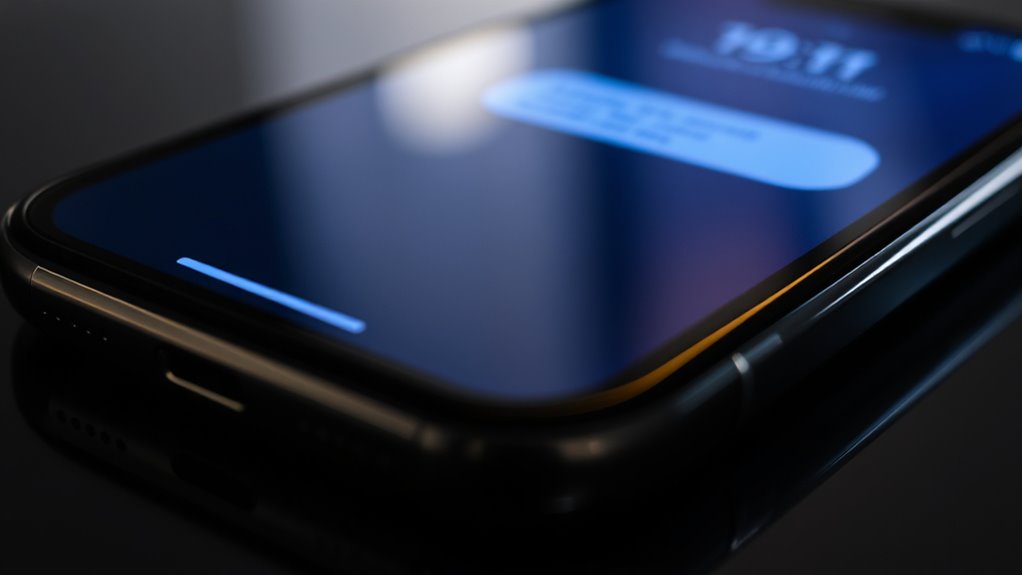
Have you ever wondered how some messages in iMessage stay hidden until you choose to reveal them? That’s where Invisible Ink comes in. It’s a messaging effect that pixelates your message or photo, making it unreadable until the recipient swipes to see it.
When you apply Invisible Ink, it adds an element of surprise and privacy, keeping your content concealed initially. You can use it on both text and images before sending in the Messages app.
Keep in mind, this effect works only on iOS devices running iOS 10 or later. Both sender and receiver need iMessage enabled for it to work.
When someone taps or swipes the hidden message, the content appears temporarily. They can view it or hide it again with another swipe.
Why Use Invisible Ink for Messaging Privacy and Fun?
Using Invisible Ink makes your messages more private by hiding sensitive content until someone chooses to reveal it.
It also adds an element of fun, creating anticipation and surprise in your conversations.
This playful feature encourages more engaging and discreet messaging, perfect for sharing confidential info or just having a bit of fun.
Adds Playful Surprises
Invisible Ink adds a playful twist to your messages by hiding the content until the recipient swipes to reveal it. This feature turns ordinary Messages into fun, interactive exchanges.
When you send a message with invisible ink, it appears pixelated, teasing curiosity and encouraging engagement. Recipients enjoy uncovering surprises, private jokes, or secret tips, making conversations more lively and memorable.
Here’s a quick look at how invisible ink enhances your messaging experience:
| Benefit | Description |
|---|---|
| Playful Surprises | Content stays hidden until revealed, adding fun. |
| Engages Recipients | Encourages active participation in the convo. |
| Keeps Secrets | Discreetly share private or sensitive info. |
| Enhances Interaction | Makes messaging more dynamic and engaging. |
| Adds Excitement | Turns simple messages into playful experiences. |
Using invisible ink isn’t just private — it’s a playful way to connect.
Enhances Message Privacy
When you want to keep sensitive or private messages discreet, invisible ink is a smart choice because it hides the content until the recipient swipes to reveal it. This feature improves privacy by preventing accidental or unwanted viewing, especially in shared or public environments.
Invisible ink in iMessage allows you to send blurred messages that remain concealed until intentionally uncovered. It’s perfect for sharing confidential information, adding a layer of protection from prying eyes.
It gives you peace of mind while also making your conversations more playful. Plus, it introduces a fun element, making privacy both engaging and functional.
Using invisible ink helps you stay in control of your message privacy while adding a creative twist to your messaging experience.
Creates Anticipation
Adding an element of surprise to your messages turns a simple chat into something fun and engaging. When you send ink with Invisible Ink, it sparks anticipation, making the recipient curious to see what’s hidden.
This playful feature encourages interaction, as they swipe to reveal the secret message. It’s perfect for lighthearted surprises or confidential announcements, adding an extra layer of fun and discretion.
The mystery behind the hidden content sparks curiosity and keeps conversations lively. Using Invisible Ink helps you create excitement and makes your messages more memorable.
Whether you’re sharing a secret or just teasing a friend, sending ink transforms ordinary messages into fun moments. It keeps your interactions fresh and engaging.
How to Send Invisible Ink Messages on Your iPhone?
Ever wondered how to add a secret touch to your messages? Sending invisible ink on your iPhone is really easy.
First, open the Messages app and pick an existing chat or start a new one. Type your message or select a photo to send.
Open Messages, choose a chat, and type or select a photo to send.
Press and hold the blue Send arrow until the message effects menu pops up. From there, tap on “Invisible Ink” in the list of effects.
To send it, tap the Send button again, and your message will be cloaked in invisible ink.
Your recipient will need to swipe to reveal the hidden message.
How to Reveal Hidden Messages Sent With Invisible Ink?
To reveal a hidden message sent with Invisible Ink, you can swipe over the pixelated message to temporarily see what’s inside. It’s a quick way to peek without fully opening it.
Alternatively, tap and hold the message bubble until the “Tap to Reveal” prompt pops up. Then just tap to see the message. It’s simple and keeps things fun.
Swipe Over Message
When you get an Invisible Ink message, revealing what’s inside is easy—just swipe over the blurred or pixelated message bubble. This temporarily uncovers the hidden content so you can see what’s been kept secret.
Remember, the message stays hidden until you actively swipe or tap on it again. You can swipe multiple times to hide or reveal it as you like, giving you control over when to view the content.
To see an Invisible Ink message, just use your finger to swipe over the message bubble. Here’s a quick visual to help you understand:
| Action | Effect | Result |
|---|---|---|
| Swipe over | Temporarily uncovers the message | View hidden content |
| Tap or swipe | Hides or reveals again | Control message visibility |
| Multiple swipes | Toggle message visibility repeatedly | Manage message access |
| Swipe over | Only way to reveal the concealed message | Secure, controlled reveal |
| Message stays hidden | Until actively swiped or tapped | Maintains privacy |
Tap to Reveal Content
Revealing an Invisible Ink message is easy—you just need to tap or swipe over the pixelated area of the message bubble. This briefly uncovers the hidden content so you can read the message.
You can tap repeatedly to hide and reveal the message as often as you like. It makes the conversation playful and interactive.
To see a hidden message sent with Invisible Ink, follow these steps:
- Tap on the pixelated area of the message bubble.
- Watch the message temporarily appear.
- Swipe over the area again to hide it.
- Keep tapping to toggle the reveal whenever you want.
This simple tap interaction keeps your messages fun and engaging. It gives you control over when you see the secret content.
Tips for Customizing Invisible Ink Messages With Photos and Text?
Enhancing your invisible ink messages with photos and text allows you to create more personalized and intriguing surprises.
With customizing, you can easily add text by typing normally and applying the Invisible Ink effect before sending. To include photos, select an image from your Camera or Photos app, then tap and hold the send button to choose the Invisible Ink effect.
Add text or photos, then hold send to reveal the Invisible Ink effect for a fun, mysterious message.
This hides the content until the recipient reveals it, adding an element of mystery. You can preview how your message will look with the effect and make adjustments or cancel if needed before sending.
Combining text and images with Invisible Ink lets you craft private disclosures or fun surprises that engage your recipient and make your messages stand out.
Troubleshooting Invisible Ink Not Sending or Showing?
If your invisible ink messages aren’t sending or showing properly, there are a few common issues to check first.
First, make sure both you and the recipient are using iOS devices with iMessage enabled and updated to iOS 10 or later. Invisible Ink doesn’t work with SMS or Android devices.
Next, check that “Reduce Motion” is turned off in Accessibility settings. If it’s enabled, it can prevent message effects like Invisible Ink from working.
Then, press and hold the send button to access the effects menu. Select “Invisible Ink” before you send your message.
Lastly, ensure “Autoplay Message Effects” is enabled in Settings > Accessibility > Motion. If it’s turned off, effects won’t automatically appear.
What Makes Invisible Ink Different From Other iMessage Effects?
Unlike other iMessage effects that immediately animate or decorate your messages, Invisible Ink keeps the content hidden until the recipient swipes to reveal it. This adds an element of privacy and surprise, making it stand out from bubble or full-screen effects that animate messages right away.
Invisible Ink works with both text and images, allowing for discreet communication. Other effects mainly aim to make messages look more eye-catching or fun, but Invisible Ink focuses on sharing sensitive or playful content secretly.
Its main purpose isn’t decoration but privacy, making it perfect for sharing things you want to keep hidden until someone chooses to see them. This makes Invisible Ink a unique and playful way to add a layer of secrecy to your messages.
How to Turn Off Invisible Ink and Other Message Effects?
To stop Invisible Ink and other message effects from automatically playing, you’ll need to change a setting on your iPhone. Turning off the “Autoplay Message Effects” option keeps effects from starting when you send or receive messages.
Here’s how to do it:
- Open Settings and go to Accessibility > Motion.
- Find “Autoplay Message Effects” and toggle it off.
- When you do this, all message effects, including bubble and full-screen animations, will be disabled.
- If you want to turn effects back on later, just toggle “Autoplay Message Effects” back on.
Disabling this feature keeps your messages plain and without automatic animations. It’s helpful if effects distract you or if you prefer more control over when they happen.
Best Practices for Using Invisible Ink Effectively?
Using Invisible Ink effectively requires strategic timing and thoughtful message delivery. To keep things private, send sensitive messages only when you’re sure the recipient will appreciate the discretion.
You can also combine invisible ink with images or text to add an element of surprise. This makes your message both engaging and discreet, adding a fun twist.
Always preview the effect before hitting send. This helps ensure it appears as intended and avoids accidental disclosure.
Remember, invisible ink works only with iMessage on iOS devices. If the recipient uses Android, it won’t display correctly.
If you want to prevent accidental revealing or no longer need privacy, disable the effect in Accessibility > Motion.
Frequently Asked Questions
How to Do Invisible Ink on an iPhone?
To use Invisible Ink on your iPhone, open a message and type your text.
Press and hold the send button. When the effects menu appears, tap “Invisible Ink” to apply it.
Tap the send arrow again to send your message. The recipient will see a pixelated cloud, and they can swipe over it to reveal your hidden message.
You can cancel or change effects before sending if needed.
How Does the iPhone Trick for Invisible Ink Work?
You’re getting a peek behind the curtain of iPhone magic. The trick works by overlaying a pixelated or blurred layer over your message, creating a sense of mystery.
When your recipient taps or swipes, this layer clears away, revealing the hidden message beneath. It’s all thanks to iOS’s animated effects, which add an interactive touch of secrecy.
This makes your messages feel more playful and engaging, adding a fun element of surprise for whoever’s on the receiving end.
How to Use Invisible Ink on iPhone Photos?
To use invisible ink on iPhone photos, open the Messages app and select a conversation.
Tap the camera icon to choose or take a photo. After selecting your photo, tap the send arrow, then hold it to access effects.
Swipe left until you find “Invisible Ink,” tap it, then send the photo. The recipient will see a pixelated image they can reveal by swiping over it.
What Is the Point of Invisible Ink on iPhone?
You might stumble upon invisible ink by chance, but its purpose is clear: it adds privacy and a fun twist to your messages.
When you send sensitive info, invisible ink keeps it hidden until the recipient chooses to reveal it. This builds anticipation and surprise.
It’s perfect for discreet sharing or playful communication, making your iMessage conversations more engaging and personalized.
Especially when you want to keep certain details confidential.
Conclusion
Remember, using invisible ink adds a fun and secretive touch to your messages, but don’t rely on it for sensitive info. Practice makes perfect—try out different messages and effects to get the hang of it.
As the saying goes, “A little mystery keeps conversations interesting.” Keep exploring these features to make your messaging more fun and engaging.
Just stay mindful of privacy while enjoying the magic of invisible ink on your iPhone. Happy messaging!