
How to Check Printer Ink Levels
Are you tired of running out of ink at the worst possible moment? Many people struggle with keeping track of their printer ink levels, which can lead to frustrating interruptions. You’re not alone in facing this challenge, but there are simple ways to stay on top of your ink supplies.
To verify your printer ink levels, use built-in utilities on your computer or control panel indicators on the printer itself. Many printers also include transparency tanks or cartridges you can visually inspect for accurate levels.
Manufacturer apps or utilities like HP Smart or Epson Status Monitor can provide real-time updates.
Remember, combining digital checks with visual inspections ensures accuracy. Keep exploring, and you’ll find out how to manage your ink supplies efficiently and safely.
Key Takeaways
- Use the printer’s control panel or display to view ink or toner level indicators directly. It’s usually straightforward to check right from the printer itself.
- Check the printer software or utilities on your computer for real-time ink level updates. Many printers have dedicated apps that make monitoring easy.
- Access your computer’s printer settings via the Devices or Printers menu to see ink status. It’s often just a few clicks away.
- Visually inspect transparent ink tanks or cartridges for estimated ink levels. This can give you a quick idea of when to refill.
- Use manufacturer-specific apps or monitoring tools for detailed and real-time ink level information. These tools are designed to give you the most accurate updates.
How to Check Ink Levels on Your Printer (Windows & Mac)
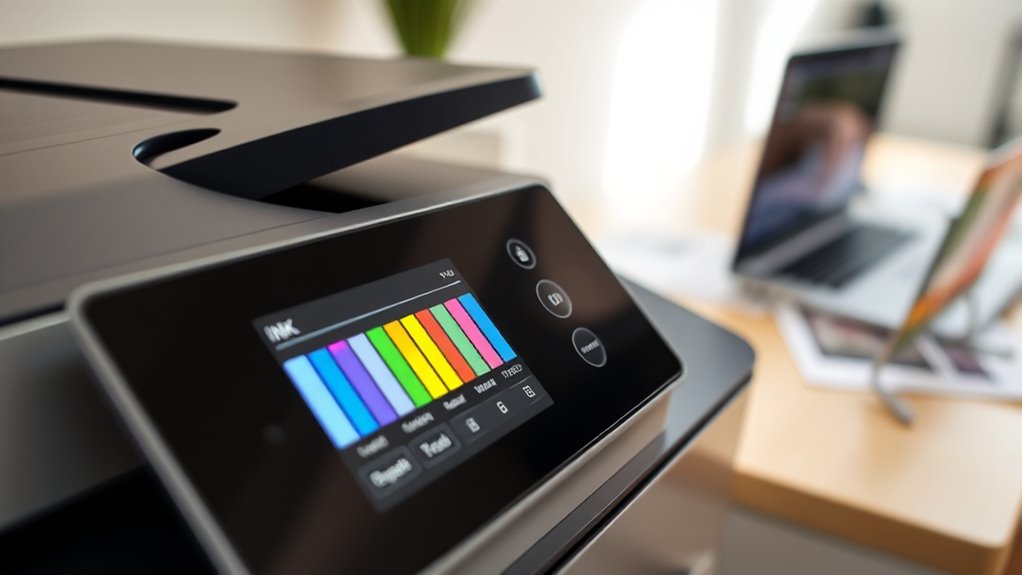
Checking your printer’s ink levels is pretty simple whether you’re on Windows or Mac.
Checking ink levels is easy on Windows and Mac—just a few steps to stay prepared.
On Windows, just go to Devices > Printers & Scanners, pick your printer, and look for the ink or toner info. Some brands have their own utilities that give you detailed ink level updates, making it easier to keep track of your supplies.
If you’re using a Mac, head to System Preferences > Print & Scan, select your printer, then click Supply Levels to see the ink status. Many printers also have control panel buttons or touchscreens that show ink levels directly, so you might not even need your computer.
Just make sure your printer is powered on and connected to your device or network. Keeping an eye on ink levels helps you avoid running out unexpectedly when you really need to print important documents.
Using Printer Control Panels to Monitor Ink Levels
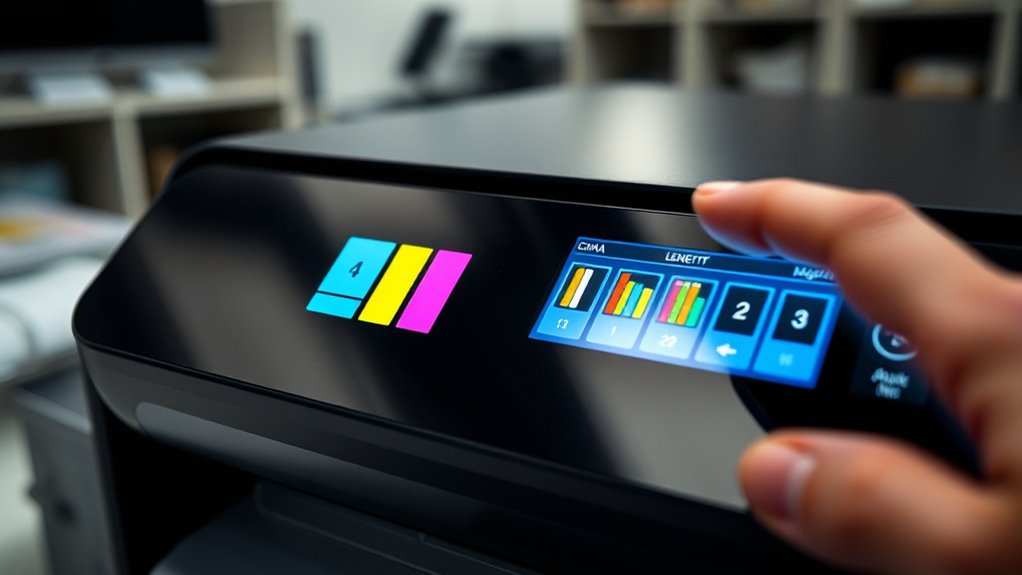
You can quickly check your ink levels by navigating your printer’s control panel menus, which often show detailed status options. Look for color-coded icons, blinking lights, or bar gauges that tell you when ink is low or empty.
Checking these indicators regularly helps you stay ahead of print quality issues. It also makes sure your printer runs smoothly without surprises.
Navigating Control Panel Menus
Most printers have a dedicated menu or icon on their control panel that shows ink or toner levels directly on the device. To check these, turn on your printer and make sure it’s connected.
Next, press the menu or home button to access the main control panel. Use the physical buttons or touchscreen to select the “Supplies” or “Maintenance” menu.
Look for visual indicators like bar graphs, color codes, or blinking icons that display your ink status. These icons give you a quick overview of your ink levels.
If you want more details, just select the relevant option within these menus. Your control panel is the quickest way to monitor your ink supply.
Identifying Ink Icons
When you access the printer’s control panel to view ink or toner levels, you’ll notice specific icons that give quick visual cues. These ink icons often look like small ink drops, cartridge images, or bar graphs, so you can instantly see how much ink is left.
To find them, navigate through the menu or home screen using physical buttons or a touchscreen. Some printers show color-coded ink icons or blinking alerts to warn you when ink is low.
Recognizing these icons helps you monitor ink levels easily without opening cartridges. Regularly checking them ensures you catch low ink warnings early, preventing print failures or interruptions.
Familiarity with these symbols makes it easier to decide when to refill or replace cartridges, keeping your printing process smooth.
Reading Toner Gauges
Monitoring toner levels through your printer’s control panel is straightforward, as most devices display a dedicated icon or gauge that indicates remaining toner. You’ll usually see a visual, like a bar or circle, showing toner status at a glance.
To read the toner gauges effectively, start by navigating to the menu options labeled “Supplies,” “Toner Levels,” or “Supply Status.” Look for a blinking amber icon or a color change to indicate low toner.
For more precise monitoring, check if there’s a percentage readout on the control panel screen. These toner gauges help you stay ahead of low toner issues, preventing print quality problems and keeping your printer running smoothly.
Regularly checking these indicators ensures your printer is ready for all your printing tasks.
Checking Ink Levels With Manufacturer Apps and Utilities
Using manufacturer apps and utilities is a quick and reliable way to check your printer’s ink levels. Apps like HP Smart, Epson Status Monitor, and Brother ControlCenter let you see ink levels directly from your smartphone or computer.
You usually need to install the manufacturer’s software and connect your printer via Wi-Fi or USB. Once set up, these utilities display ink levels visually with gauges or bars, making it easy to see how much ink is left at a glance.
They also provide real-time updates and alerts for low ink or toner, helping you plan refills before running out. Compared to basic control panel indicators, manufacturer apps give more detailed and accurate ink status info.
How to View Ink Status on a Mac Printer Setup
Checking your ink levels on a Mac is pretty straightforward. You just need to access your printer’s built-in utilities through System Preferences. Here’s how to do it:
- Open the Apple menu, select “System Preferences,” then click “Print & Scan.”
- Pick your printer from the list, then click “Options & Supplies.”
- Go to the “Utility” tab and click “Open Printer Utility.”
This will open your printer’s management software, like the Epson Status Monitor. You’ll see a digital gauge or color bars filling up, showing how much ink is left.
Now, you can easily keep an eye on your ink levels and monitor your printer’s status. It’s a simple way to make sure you don’t run out of ink unexpectedly, without needing any external tools.
Checking Ink Levels on HP, Canon, Epson, and Other Brands
Have you ever wondered how to quickly see your ink levels across different printer brands? For HP printers, you can check ink levels through control panel icons, the HP Smart app, or by physically inspecting the ink tanks’ windows.
Canon printers usually display ink levels via the printer driver’s Maintenance or Print Preferences menu or through the Canon IJ Status Monitor software. Epson users can open the printer’s utility software, like Epson Status Monitor 3, or check through the control panel.
Brother printers provide ink level details via the Brother ControlCenter4 software or on the LCD screen if it’s available. Lexmark printers display ink or toner levels in the printer properties through Windows Devices and Printers or on the printer’s onboard display.
Troubleshooting When Ink Levels Don’t Show Correctly
Sometimes, ink level readings can be off or not show up properly, even if your printer still has ink. First, make sure your printer is turned on and connected correctly, as some models only display ink levels when they’re active.
Next, check your ink levels using the manufacturer’s software or control panel, not third-party apps, to get the right info. Finally, resetting the printer or running a self-diagnostic can fix any temporary glitches.
Picture this: a printer blinking and waiting for you to turn it on. Then, imagine opening the manufacturer’s app and seeing a clear gauge of your ink levels. Lastly, think of pressing a reset button to clear any misreadings.
What to Do When Ink Levels Are Low or Not Visible
When ink levels are low or not visible, the first step is to make sure your printer is properly connected, powered on, and running the latest drivers or firmware. If the ink levels still don’t show, try using manufacturer-specific utilities like Epson Status Monitor or HP Smart for more detailed ink information.
Check your printer’s control panel or touchscreen for icons or menus that indicate ink status, even if the levels aren’t visible on your computer. For printers with transparent ink tanks, visually inspect the tanks to estimate how much ink is left before relying only on digital displays.
If you suspect the ink is running low, consider refilling or replacing cartridges proactively. Doing this can help prevent print quality issues or operational interruptions. Staying ahead of low ink levels keeps your printing smooth and your printer performing well.
Tips for Regularly Monitoring and Replenishing Ink Supplies
To make sure your printer always has enough ink, get into the habit of regularly checking the ink levels using built-in utilities or your control panel indicators. This helps you catch low ink early and avoid surprises during important printing tasks.
It’s a good idea to check the printer status and ink levels often, especially before big print jobs, so you don’t run out mid-print. Using manufacturer-specific apps or software can also help you monitor ink remotely and send alerts when ink is running low.
Visually inspecting your ink cartridges or tanks from time to time can give you a more accurate idea of how much ink is left. While estimates are helpful, actual checks are more reliable.
Keeping spare ink cartridges or refill supplies nearby means you can quickly top up when needed. Regular monitoring helps keep your ink levels sufficient and ensures your print quality stays high.
How to Refill or Replace Printer Ink Safely
Before refilling or replacing your printer’s ink, always turn off and unplug the device to prevent electrical shocks or damage. Open the access panel or ink cartridge compartment carefully, following the manufacturer’s instructions.
If your printer has an ink tank, handle it gently to avoid spills. Use only manufacturer-approved ink cartridges or refilling kits to ensure compatibility and avoid damaging your printer.
When refilling, handle ink bottles with clean hands to prevent contamination. If you’re replacing cartridges, remove the used ones carefully and dispose of them properly, following environmental regulations.
Always use the correct ink type specified by your printer’s manufacturer. Taking these precautions helps ensure safe refilling or replacement, preventing damage and maintaining great print quality.
Using Alerts and Notifications to Stay on Top of Ink Levels
You can stay ahead of low ink issues by paying attention to alerts and notifications from your printer or mobile app.
When you see a warning or blinking light, it’s a clear signal to check your ink levels and refill or replace cartridges promptly. Responding quickly to these alerts helps prevent printing delays and keeps your print quality sharp.
Recognizing Low Ink Alerts
Recognizing low ink alerts is key to keeping your printing running smoothly. Most printers automatically notify you when ink levels get low.
When the ink drops to a critical point, you’ll see pop-up messages or warning icons on your screen. Some printers also use blinking lights or indicator signals on the control panel to show low ink.
Many models send alerts via email or smartphone apps, giving you a heads-up before the ink completely runs out. To stay prepared, check your printer’s alert settings—these are often customizable so you can choose when to be notified.
Paying attention to these alerts helps prevent print quality issues and keeps your printing process uninterrupted.
Responding to Notifications
When your printer sends a notification about low ink, it’s important to respond quickly to keep your printing on track. Ignoring alerts can cause poor print quality or unexpected interruptions. Make sure to enable notification settings in your printer software or mobile app so you get timely updates.
Many printers automatically send email or app notifications, so you’re always informed before the ink is completely out. When you receive a notification, follow the instructions or click the links to check ink levels or order replacements.
Staying proactive with these alerts helps prevent printing delays and keeps your print quality high. Whether it’s an on-screen alert, email, or app notification, taking action right away makes a big difference.
| Notification Type | Action Needed |
|---|---|
| On-screen alerts | Check ink levels immediately |
| Email notifications | Refill or replace cartridges |
| App alerts | Follow prompts to order supplies |
| Critical alerts | Refill before ink runs out |
| Software prompts | Update settings for alerts |
Why Visual Inspection of Ink Tanks Complements Digital Readings
While digital ink level readings are usually reliable, they can sometimes be off because of sensor errors or software glitches. That’s why visually inspecting ink tanks is so important. It gives you a quick, tangible way to confirm ink levels and avoid surprises.
When you check visually, you can spot leaks, clogs, or damage that digital readings might miss. You can also see discoloration or contamination that could impact your print quality. Plus, it helps you verify ink levels are good before they get too low, preventing print problems.
Common Mistakes to Avoid When Checking or Replacing Ink Cartridges
Avoid ignoring low ink alerts, because waiting too long can hurt your print quality and even damage your printer. It’s best to stay on top of these notifications to keep everything running smoothly.
Always do a visual check of your cartridges instead of relying only on software readings. This way, you can catch any issues early and ensure your printer is in good shape.
Take your time when replacing cartridges, and make sure to follow the manufacturer’s instructions carefully. This helps prevent spills and misalignment, making the whole process easier and safer.
Ignoring Printer Alerts
Ignoring printer alerts about low ink levels might seem harmless, but it can lead to serious issues. When you ignore alerts, you risk poor print quality, ink clogs, or even damage to your print head.
This can cause costly repairs and shorten your printer’s lifespan. Picture yourself seeing a warning message pop up, but dismissing it without checking the ink level.
You keep printing, only to notice your prints are faded or streaked. Eventually, the ink runs out completely, stopping your print jobs and delaying your work.
Overlooking Visual Checks
Have you ever checked the ink levels solely through your printer’s digital display and assumed they were accurate? Relying only on that digital indicator can be misleading. A visual check is essential to confirm ink levels physically.
Ignoring this step might cause you to run out of ink unexpectedly, disrupting your workflow. It also increases the risk of print failures or damage if you proceed without inspecting the cartridges or ink tanks.
Software readings can be inaccurate if the utility isn’t updated or malfunctions. During cartridge replacement, neglecting a visual check could lead to improper installation or damage.
Always perform a visual check to verify ink levels and guarantee proper cartridge placement—this simple step saves time and prevents avoidable issues.
Rushing Cartridge Replacement
When replacing ink cartridges, rushing through the process can lead to mistakes that may cause more harm than good. First, avoid clicking quickly through the steps without confirming the approximate ink levels. This helps prevent unnecessary cartridge replacements.
Second, don’t ignore manufacturer instructions. For example, turn off the printer or disconnect it properly before opening it. To check ink levels, select Printers, click the printer icon, then access the EPSON Status Monitor or Maintenance tab and click to see the ink levels.
Third, be cautious when handling ink or toner. Clean cartridge contacts and avoid rushing the replacement. Rushing might cause ink leaks or recognition issues.
Frequently Asked Questions
How Do I View My Printer’s Ink Levels?
You can view your printer’s ink levels using the control panel or touchscreen if your printer has one.
On Windows, open Devices and Printers or use your manufacturer’s utility software.
On a Mac, go to System Preferences, then Print & Scan, and select your printer to see supply levels.
Many printers also display ink levels on their LCD screens or through dedicated buttons.
Mobile apps can also help monitor ink remotely.
How Can I Tell How Much Ink Is Left in My Cartridge?
A stitch in time saves nine, so you should check your ink levels regularly. To see how much ink is left in your cartridge, look at your printer’s on-screen utility or control panel. It usually shows the ink status clearly.
On your computer, go to printer settings. On Windows, click on Devices and Printers. On Mac, open System Preferences. Many printers also have transparent windows or apps for more precise readings.
How Do I Check the Ink Levels on My Epson Printer?
To check ink levels on your Epson printer, start by accessing the printer’s software or control panel.
On a Mac, go to System Preferences > Print & Scan, select your printer, then click on Options & Supplies > Utility > Epson Status Monitor.
On Windows, open Control Panel, select Devices and Printers, right-click your printer, choose Printing Preferences, and then go to Maintenance.
Many Epson models also have a physical window where you can view the ink levels directly.
How Do I Know Which Printer’s Ink Is Low?
Imagine you’re preparing for an important presentation, only to find your printer’s ink runs out. To know which ink is low, check your printer’s control panel for warning lights or messages.
Alternatively, use your computer’s printer software. On Windows, go to Devices and Printers. On Mac, visit System Preferences.
You can also physically inspect the ink tanks or cartridges. This can reveal low ink levels and save you last-minute stress.
Conclusion
Now that you know how to check your printer ink levels, you can keep your printer running smoothly. No need to wait for the ghost of a forgotten ink cartridge to haunt your prints.
Whether you’re using digital tools or a quick visual check, staying on top of ink levels is easy. A little vigilance today can prevent a print catastrophe tomorrow.
Remember, keeping an eye on your ink levels ensures your printer stays in top shape. That way, you’re never caught off guard by low ink or empty cartridges.