8 Simple Steps to Check Ink Levels on HP Printers
Many people struggle with knowing when their HP printer ink is running low, which can be frustrating during important print jobs. Keeping track of ink levels is essential to avoid unexpected interruptions. If you’re tired of surprises, you’re not alone—monitoring ink has never been easier.
To check ink levels on your HP printer, start by using the control panel to find ink or toner status icons. Inspect the ink tank windows or gauges to see physical levels.
You can also use your computer’s HP software or mobile app for real-time updates and alerts.
Access your printer’s web interface via its IP address for remote monitoring.
If you keep going, you’ll uncover more tips for accurate and easy ink management.
Key Takeaways
- Use the printer’s control panel to go to the ink or supply status menu.
- You can also check ink levels with HP Smart or HP Printer Utility software on your computer.
- Alternatively, view ink status through the HP Smart mobile app that’s connected to your printer.
- Another option is to access the printer’s embedded web server by entering its IP address into a browser.
- For printers with transparent ink tanks, simply inspect the windows or gauges to get a visual ink level check.
Check Your HP Printer’s Ink Levels Using the Control Panel
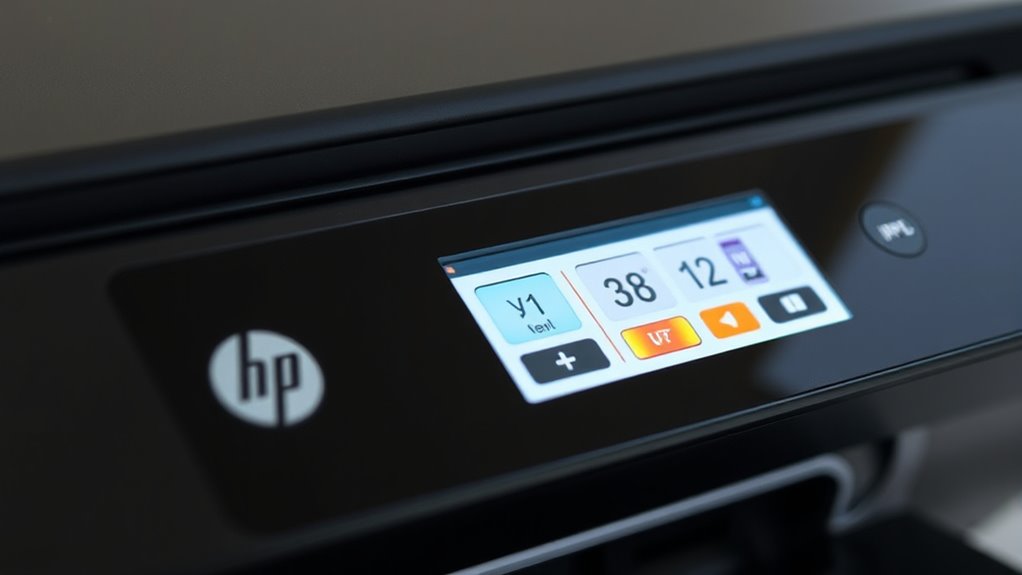
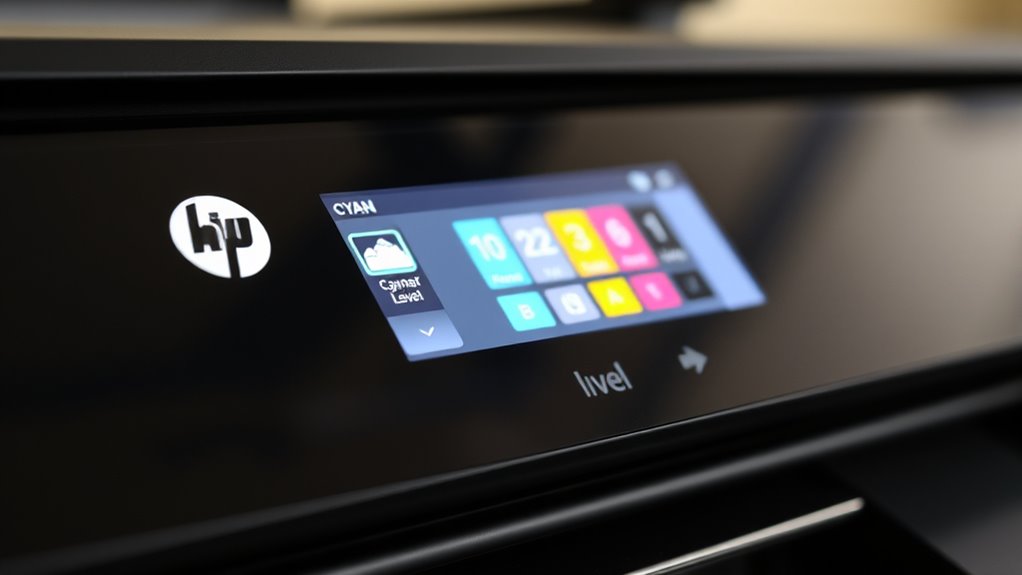
To check your HP printer’s ink levels using the control panel, start by accessing the printer’s menu or icons related to ink or toner status. Look for symbols like ink drops, cartridge icons, or supply indicators on the screen.
Once you find them, navigate through the menu options to locate “Ink/Toner Levels” or a similar status page. Here, you can see visual cues like blinking lights or color changes that show low ink levels.
On LaserJet Tank models, you can also use the front-facing toner gauge for a quick visual check of ink or toner. Regularly checking these indicators helps you stay aware of ink levels before they run out, avoiding unexpected printing issues.
Inspect Ink Tank Windows or Front Gauge for Physical Ink Levels
Many HP printers, especially the HP Smart Tank and LaserJet Tank models, have transparent ink tank windows or front-facing toner gauges. These let you see ink or toner levels without opening the device.
To check, look at the ink tank window and make sure the ink level is between the minimum and maximum marks on the tank. For LaserJet models, the toner gauge gives a visual indication of toner levels so you can quickly see if a refill is needed.
Always confirm the ink or toner levels by physically inspecting the tank window or gauge before starting large print jobs. This helps ensure you won’t run out of ink or toner mid-task.
Properly seating the ink tank in its slot guarantees an accurate reading of the ink level through the window or gauge.
Use Your Printer’s Software on Your Computer to View Ink Status
Using your printer’s management software on your computer makes it easy to check ink levels without opening the device.
To do this, open your HP software like HP Smart or HP Printer Utility. Make sure your computer is connected to the same Wi-Fi network as your printer for smooth communication.
Once the software opens, select your specific printer model from the device list. Then, go to the ink or supply status section within the interface.
Here, you’ll see detailed ink level information for each cartridge, so you know when it’s time to replace or refill. Follow the on-screen instructions to view accurate ink levels and set up alerts for low ink or toner.
This way, you can keep printing without interruptions.
Monitor Ink Levels Remotely With the HP Mobile App
With the HP Mobile App, you can easily monitor your ink levels from anywhere. The setup is quick, and you’ll get real-time alerts when ink runs low.
This remote access helps you stay on top of cartridge replacements without interrupting your printing. It’s a simple way to keep your printer ready to go whenever you need it.
Easy App Setup
Setting up your HP printer to monitor ink levels remotely is simple with the HP Smart app. Just download and install the app from the App Store or Google Play.
Make sure your phone is connected to the same Wi-Fi network as your printer for smooth communication. Launch the app and follow the on-screen prompts to add your printer.
Once connected, go to the printer’s dashboard within the app to check the ink levels easily. This way, you can stay updated without any hassle.
You can also receive low ink alerts directly through the app, helping you manage cartridge replacements proactively. Enjoy the convenience of checking ink levels anytime, anywhere, with just a few simple steps.
- Download and install the HP Smart app from your app store
- Connect your phone to the same Wi-Fi as your printer
- Follow prompts to add your printer and check ink levels
Real-Time Ink Alerts
Once your HP printer is connected to your Wi-Fi, the HP Mobile App can send you instant notifications about low ink or toner levels.
With the app, you can view real-time ink levels right on your smartphone or tablet, so there’s no need to check manually.
The HP App shows detailed ink status, including current levels for each cartridge or ink tank, helping you avoid surprises.
By enabling push notifications, you’ll get timely alerts when ink levels drop, so you can act quickly.
You can also start cartridge replacements or order new supplies directly through the app, based on the real-time ink data.
This seamless monitoring keeps you informed and ensures your printer is always ready for your printing needs.
Remote Monitoring Benefits
Ever wondered how you can keep track of your printer’s ink levels without being physically present? The HP Mobile App makes remote monitoring simple and convenient.
With this app, you can check ink levels anytime from your smartphone or tablet, giving you real-time updates that keep you informed. You’ll receive low ink alerts and notifications directly on your device, helping you plan cartridge replacements ahead of time.
Managing multiple HP printers becomes easier, as the app lets you view detailed ink status for each device remotely. This boosts your efficiency by reducing unexpected print interruptions.
- Check ink levels on the go without physical inspection
- Receive alerts and notifications instantly
- Manage multiple printers remotely with ease
Access Your HP Printer’s Web Interface Using Its IP Address
To access your HP printer’s web interface, first find its IP address. You can do this through the printer’s control panel or network settings menu. Once you have the IP address, open a web browser and type it into the address bar.
This will load the printer’s embedded web server, giving you access to its web interface. If prompted, log in using default credentials or those provided by your network administrator. The web interface shows real-time ink and toner levels along with detailed status information.
Using this method, you can monitor ink levels remotely and perform maintenance tasks without installing extra software. It’s a quick and easy way to keep track of your ink levels directly from your browser.
Troubleshoot Common Issues With Ink Level Display Accuracy
Even with remote monitoring through your printer’s web interface, ink level readings can sometimes be off. Outdated drivers or software glitches are common causes of display inaccuracies, so keeping everything updated is really important.
Some older HP models might not support ink level monitoring in newer operating systems, which can lead to missing or incorrect indicators. Resetting the printer or doing a power cycle can help recalibrate the ink sensors and improve the display’s accuracy.
Using manufacturer-recommended software and regularly updating your firmware can prevent false low-ink alerts. To double-check ink levels, compare the software readings with a physical inspection or the web interface.
This way, you can spot discrepancies and troubleshoot display issues more effectively. Remember to update drivers and firmware regularly, reset or power cycle your printer when needed, and verify ink levels manually to stay on top of things.
What to Do When Ink Levels Aren’t Showing Correctly?
When ink levels aren’t displaying correctly, the first thing to do is ensure your printer’s software and drivers are fully up to date. Outdated software can cause inaccuracies in ink level readings, so check for updates through the HP website or the HP App.
Next, verify ink levels using different methods like the control panel, web interface, or HP App. This can help you spot any discrepancies. Restart your printer to fix temporary glitches that might be affecting the ink level display.
If your printer is older or incompatible, you might need to manually check the ink tanks or cartridges for the actual ink levels. If things still aren’t showing properly, it’s a good idea to contact HP support or consult your printer’s user manual for further help.
Summary: Keep Your Ink Levels in Check for Smooth Printing
Have you ever had your printing suddenly pause because your ink ran out? Keeping an eye on your ink levels is key to smooth printing with your HP Printer.
Regularly checking your ink levels helps you replace cartridges before they run dry. This way, you avoid print quality issues and annoying interruptions.
Using the printer’s built-in indicators or HP’s mobile app makes it quick and easy to stay updated on your ink status.
Managing your ink levels properly not only prevents delays but also extends your cartridge’s lifespan and saves you money.
- Prevents unexpected print disruptions
- Keeps your print quality consistent
- Saves time and money by avoiding urgent replacements
Frequently Asked Questions
How Can I Check My HP Printer Ink Levels?
You can check your HP printer’s ink levels by looking at the control panel for supply icons or ink indicators.
For HP Smart Tank models, peek into the ink tank window to see if levels are between the min and max marks.
On LaserJet Tank printers, check the toner gauge—blinking amber means you need a refill.
You can also use the HP App or your computer’s printer software to monitor ink levels remotely.
How Do I Manually Check Ink Levels on My Printer?
You just want to know if your ink’s running low, right? No need to panic or call the Ghostbusters. Open up your printer’s front cover or cartridge door, and look at those tiny windows.
If the ink level is near the bottom or below the minimum mark, it’s time to restock. For laser models, check the toner gauge. Make sure everything’s seated properly for an accurate reading. Easy peasy!
How Do You Know if Your HP Printer Has No More Ink?
You know your HP printer has no more ink when it shows a low ink warning or an “Out of Ink” message.
If your printouts are faded, incomplete, or blank, that’s another sign.
You can also open the ink cartridge or tank to check the ink gauge.
If the cartridges are empty or the printer won’t print, it’s time to replace the ink cartridges to get your printer working again.
How to Read Ink Levels on HP Envy 4500?
Did you know that most ink cartridges last for about 500 pages? To check the ink levels on your HP Envy 4500, just press the “Information” icon on the control panel.
The display will show a graphic indicating each cartridge’s ink level. For more precise readings, you can use the HP Smart app or open your printer software and go to the “Supply Levels” tab.
Regularly checking your ink levels helps keep your printing smooth and prevents surprises when you’re in the middle of a print job.
Conclusion
Keeping an eye on your HP printer’s ink levels is like having a secret weapon. It helps you avoid those annoying surprises of running out of ink at the worst moment.
By following these simple steps, you’ll stay ahead of low ink issues and keep your printing smooth as silk. A little vigilance now can save you a lot of frustration later.
Don’t let your ink run dry because a well-inked printer is your best partner in creating perfect prints every time.